2-Factor Authentication

2-Factor Authentication
Hey there Bloomers! 👋 In this guide, we will go over how to set up 2FA on your account.
Only use 2FA on devices you trust. It's not recommended to set up 2FA on a shared or compromised device.
Remember to write down the recovery code shown while setting up 2FA, without it you'll be unable to restore access to your account if you lose access to your verification device.
Billing Area 2FA
To set up 2FA in the Billing Portal, head over to the Billing Portal login.
Next, head over to Security Settings which you can find here:
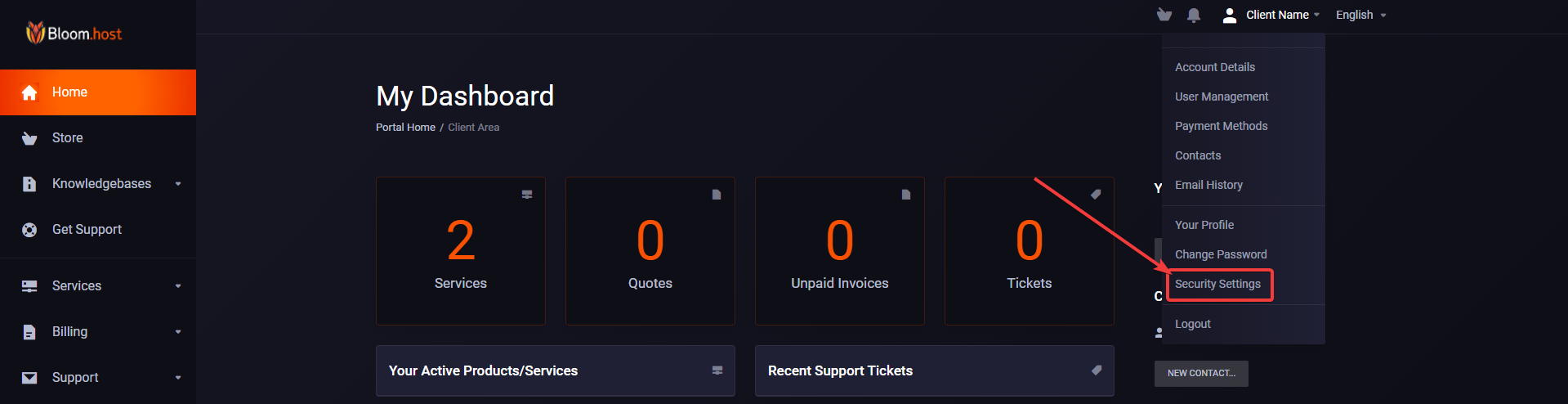
You can then follow the instruction on the screen. You will need to download Google Authenticator or DUO from the android or IOS app store.
Game Panel 2FA
To set up 2FA in DuckPanel, head over to Account Security.
Hit Enable 2-Factor Authentication to show a QR code that you can scan.
For this, download an app on your phone that is a 2FA app, such as Authy.
Then, add a new account and scan the QR code. Once it is scanned, type the token that you have on the app into the Authentication Token box.
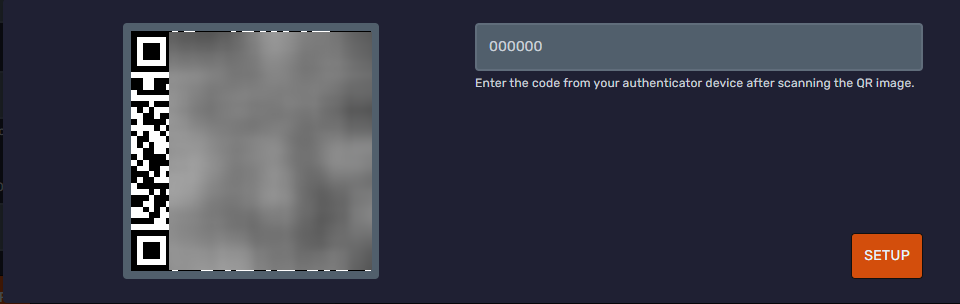
You are set and fully protected! Remember to keep the device near you when you log in so you can authenticate yourself!